
QuickBooks Check Printing Alignment: How to Fix Text That Prints in the Wrong Place
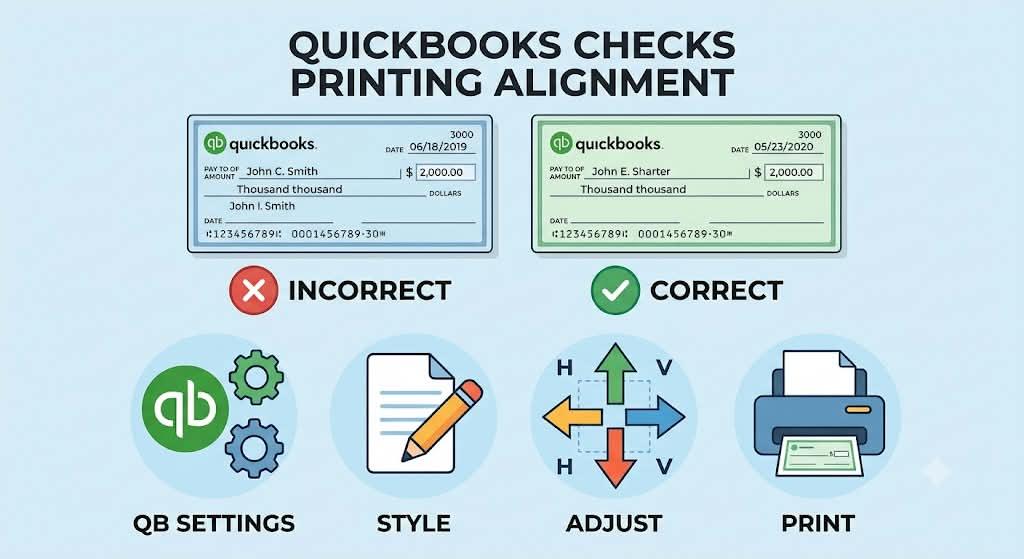
QuickBooks check printing alignment is the adjustment that tells QuickBooks exactly where to print the payee, amount, date, and memo on your check paper. It exists because every printer feeds paper a little differently, and a check leaves almost no room for error.
You hit Print, wait for the printer to finish, and pick up the check. The amount is sitting on the line above where it belongs. Or the date is jammed against the edge. Or the memo is printing right across your company name. Sound familiar?
It happens to almost everyone who prints checks in-house, and it's rarely QuickBooks' fault. The software sends the same layout every time. Your printer decides how far to pull the paper in and how much margin to leave, and those choices drift. A driver update, a different tray, a new box of stock. Any of them can move the text a couple of millimeters, which on a check is plenty.
It matters beyond looks, too. Banks read the numbers along the bottom edge with machines, and a check that gets kicked back leaves you explaining yourself to a vendor who just wanted to be paid. A few minutes of alignment work now beats that phone call.
This post covers why checks slip, how to fix it in QuickBooks Desktop and QuickBooks Online, and what to try when the fix won't stay put.
Why the text moves
Start with the boring answer: scaling. If your print dialog says Fit to page or Shrink to fit, the printer resizes the whole page by a few percent and every field shifts with it. It's the top reason a setup that looked perfect yesterday looks wrong today.
Drivers come second. Windows updates like to swap in a generic driver without asking, and generic drivers often use different margins than the one you had. Then there's the physical side. Checks loaded a hair crooked, paper guides that have gone loose, or an older inkjet whose feed rollers have worn smooth and started to slip. Shared printers add their own trouble, because someone printing a spreadsheet on Tuesday can change a setting that breaks your checks on Wednesday.
Here's a quick way to sort it out. If every field is off by the same amount in the same direction, think margins or paper feed. If some fields are off and others aren't, or the text looks squished, think scaling.
Before you touch any settings
Don't practice on real checks. Print a sample on plain paper, lay it over a real check, and hold both up to a window. You'll see right away which lines miss and by how much. Keep that sample around, because you'll be comparing against it a few times. It feels slow, but it's the fastest route, because you'll waste nothing while you learn how your printer behaves.
Two quick checks before you start. Make sure the check style in QuickBooks matches the paper in your hand, since voucher, standard, and wallet layouts all sit differently. And set the print scale to 100 percent or Actual size.
Fix alignment in QuickBooks Desktop
-
Open the File menu and click Printer Setup.
-
In the Form Name list, choose Check/PayCheque.
-
Pick your check printer, then choose the style that matches your paper (voucher, standard, or wallet).
-
Click Print Sample and send it to plain paper.
-
Lay the sample over a real check and note where each line lands.
-
Click Fine Tuning. The vertical box moves text up or down, and the horizontal box moves it left or right. Positive numbers push text down and to the right.
-
Print another sample and compare again.
-
Keep adjusting until the payee, amount, date, and memo all sit inside their boxes.
-
Click OK to save, then print one real check to confirm.
Change one number at a time. If you change both and things look better, you won't know which one helped. If they look worse, you won't know what to undo. Small nudges beat big swings.
Fix alignment in QuickBooks Online
-
Click New and choose Print checks.
-
Choose the bank account, then select the check style you use.
-
Click Print setup.
-
Print the sample page on plain paper.
-
Lay it over a real check and see which lines are off.
-
Use the alignment controls to nudge the print area up, down, left, or right.
-
Print again and repeat until the fit looks right.
-
Click Done so the setting sticks.
Here's the step that catches people. QuickBooks Online hands you the checks as a PDF, and your browser or PDF viewer can apply its own scaling on top of yours. If the print dialog shows Fit or Shrink oversized pages, change it to Actual size. Skip that, and all the careful adjusting you just did gets undone in the last five seconds.
When the fix keeps slipping
Sometimes the alignment is perfect on Friday and wrong again on Monday. If that's your situation, work through these:
-
Reinstall the printer driver from the manufacturer's site, then restart the computer.
-
Set the paper type in the printer preferences to match your check stock, because heavier paper feeds differently.
-
Fan the stack before loading so sheets don't cling together and pull through in pairs.
-
Delete the old saved profile in Printer Setup and build a new one from scratch.
-
Try another browser if you print from QuickBooks Online, since some add their own margins.
-
On a shared printer, assign one tray to checks and ask coworkers to leave its settings alone.
-
Wipe the paper feed rollers with a lint-free cloth, because dust and residue cause slipping.
If none of that works and the printer is five or six years old, the feed mechanism may just be tired. A plain laser printer tends to handle checks more consistently than an inkjet.
Habits worth keeping
Test-print every time you open a new box of checks. Batches vary a little between orders, and finding that out on plain paper is a lot cheaper than finding out on the real thing. Jot your final vertical and horizontal numbers somewhere you'll find them, like a sticky note or a shared doc, so you can restore them quickly after a driver update. Stick with one brand of stock per print run, and when you're printing a big batch, run the first two checks and look them over before sending the rest. Small stuff, but it adds up over a year of payroll and vendor runs.
If you can, give checks their own tray. Every time someone swaps in office paper and reloads the checks afterward, the paper guides end up in a slightly different spot.
Frequently asked questions
1. Why does QuickBooks print my check amount outside the box?
Usually it's scaling. When the print dialog is set to fit the page, everything shrinks slightly and the amount drifts toward the edge. Switch to 100% or Actual size and reprint a sample on plain paper. If the amount still sits too high or too low, a small vertical change in Fine Tuning normally fixes it. Then load real checks.
2. Can I fix alignment without wasting check stock?
Yes. Print the sample on plain paper, lay it over a real check, and hold both up to a lamp or window. The gaps show up right away. Adjust the numbers, reprint on plain paper, and repeat. Load real checks only after every field lines up, and run a single check before you print the whole batch.
3. Does alignment differ between voucher checks and standard checks?
It can. Each style has its own layout, and voucher checks carry extra stub space that changes where the main check begins. Values you saved for one style may not suit another. Adjust them separately, and label your notes so you don't mix them up later.
4. My alignment was fine last week. What changed?
Most likely a printer driver update, a new tray setting, or a fresh batch of checks that feeds a little differently. Someone sharing the printer may also have changed a preference. Start there, reprint a sample, and compare it with your last good one to see which way the text moved.
5. Will bad alignment cause a bank to reject my check?
It can, mainly when the amount, the signature line, or the numbers along the bottom edge become hard to read. Banks scan that bottom strip automatically, so even a slight shift can cause trouble. A clean test print before each run keeps that risk low.

 English
 Arabic
 French
 Spanish
 Portuguese
 Deutsch
 Turkish
 Italiano
 Russian
 Romaian
 Portuguese (Brazil)
 Greek