

How to Fix a Smartphone That Keeps Showing “No SIM”
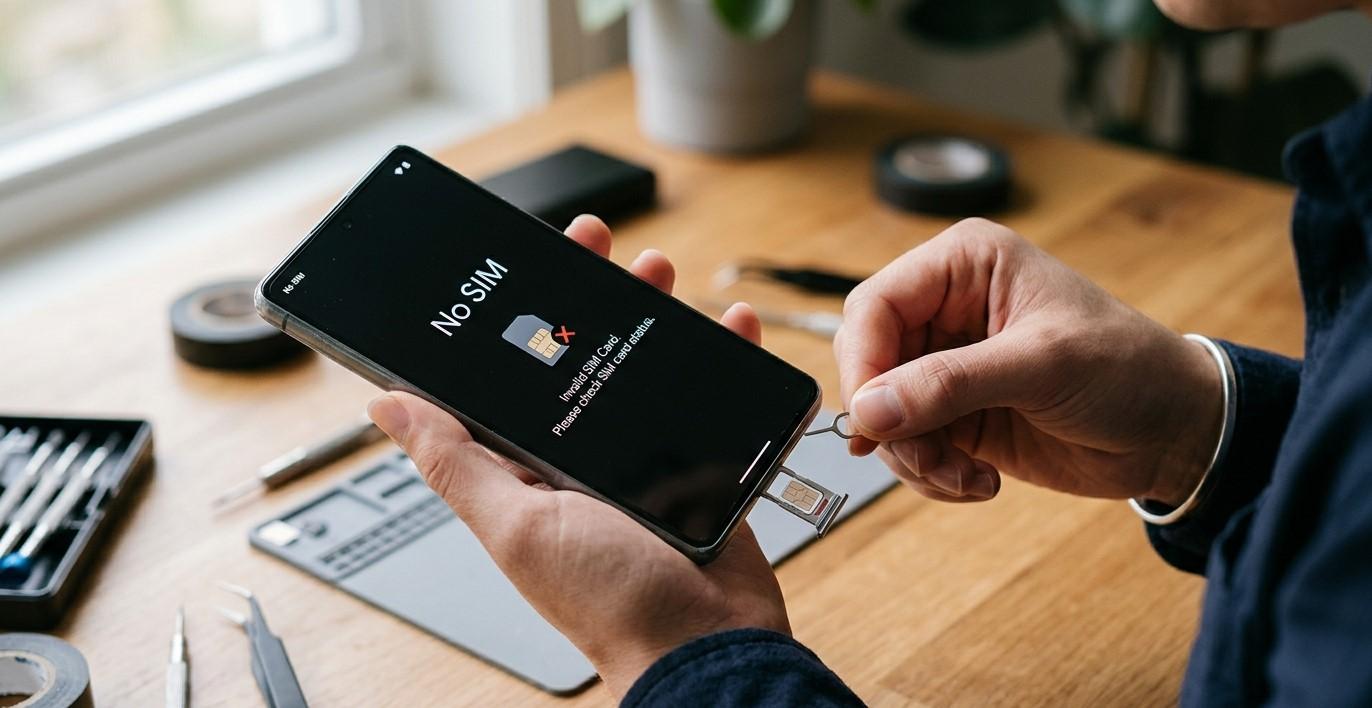
Seeing a “No SIM” or “No SIM Card” message on your smartphone can be frustrating, especially when you need to make calls, send messages, or use mobile data. In some cases, the problem is temporary and can be fixed with a simple restart or by reinserting the SIM card. However, repeated “No SIM” messages may indicate a problem with the SIM card, SIM tray, network settings, charging or internal hardware, or the phone itself.
Before assuming that your smartphone needs to be replaced, there are several troubleshooting steps you can try. If the issue continues, professional Cell Phone Repair in Douglasville, GA can help determine whether the problem is related to the SIM card, SIM reader, software, or internal components. Mobile Device Techs can assist customers experiencing a variety of smartphone and tablet problems, including iPhone repair in Douglasville, GA, Samsung Phone Repair Douglasville, GA, and Samsung Tablet Repair in Douglasville, GA.
What Does “No SIM” Mean?
A SIM card allows a compatible smartphone to connect to a cellular network. It stores information that helps identify your mobile account and allows the network to provide calling, messaging, and cellular data services.
When your phone displays “No SIM,” it generally means the device is not detecting the SIM card correctly. This does not always mean the SIM card itself is defective. The problem could be caused by a loose card, dirty contacts, a damaged SIM tray, software issues, network settings, or physical damage to the phone.
Understanding the possible causes can help you choose the right troubleshooting method.
1. Restart Your Smartphone
One of the easiest troubleshooting steps is restarting the phone. Temporary software glitches can sometimes prevent the device from recognizing the SIM card correctly.
Turn your smartphone completely off, wait a few seconds, and then turn it back on. Once the phone starts, give it a moment to reconnect to the cellular network.
If the “No SIM” message disappears after restarting, the issue may have been temporary. However, if the message repeatedly returns, additional troubleshooting may be necessary.
2. Turn Airplane Mode On and Off
Airplane Mode temporarily disables the phone's wireless connections. Turning it on and then off can sometimes refresh the device's connection to the cellular network.
Open your phone's quick settings or control center and enable Airplane Mode. Wait approximately 10–20 seconds, then turn it off.
Allow the phone a few moments to reconnect to the network. Check whether the SIM card is detected again.
This is a quick step worth trying before moving on to more involved troubleshooting.
3. Remove and Reinsert the SIM Card
A SIM card may not be detected if it has shifted slightly inside the tray.
Before removing the SIM card, turn the phone off if possible. Carefully eject the SIM tray using the appropriate tool, remove the card, and check that it is positioned correctly.
Look for obvious signs of damage, such as cracks or unusual bending. Then place the SIM card back into the tray correctly and reinsert it.
Avoid forcing the tray. If it does not slide into the phone smoothly, stop and check its alignment.
4. Check the SIM Card for Dirt or Damage
Dust, dirt, or contamination on the SIM card's contacts can interfere with the connection between the card and the phone.
Inspect the SIM card carefully. If it appears dirty, handle it gently and avoid using liquids or harsh cleaning products. The contacts should remain clean and dry.
If the SIM card is visibly damaged, contact your mobile carrier about obtaining a replacement SIM.
If a replacement SIM works normally, the original card may have been the source of the problem.
5. Test the SIM Card in Another Compatible Phone
If you have access to another compatible unlocked phone, testing the SIM card can help narrow down the cause.
If the SIM works correctly in another phone, the issue may be with your original smartphone.
If the SIM does not work in another compatible device either, the SIM card or mobile account may be responsible.
This simple test can prevent you from replacing the wrong component.
6. Check for Software Updates
Software problems can sometimes interfere with cellular connectivity or SIM detection. Manufacturers regularly release system updates that can fix bugs and improve device stability.
Check your smartphone's software update settings and install any available official update.
Make sure your phone has enough battery power and a stable Wi-Fi connection before beginning a major update.
After updating, restart the phone and check whether the “No SIM” message has disappeared.
7. Reset Network Settings
Incorrect or corrupted network settings can cause cellular connectivity problems.
Many smartphones provide an option to reset network settings. This can restore cellular, Wi-Fi, and Bluetooth-related settings to their defaults.
Keep in mind that resetting network settings may remove saved Wi-Fi passwords and other connection information. Make sure you know your Wi-Fi passwords before performing the reset.
If the phone continues to show “No SIM” after the reset, the problem may be more than a simple network configuration issue.
8. Check Your Mobile Account
Sometimes a phone may appear to have a SIM problem when the actual issue is related to the mobile account or carrier service.
If your SIM is detected but you cannot connect to the cellular network, check whether your account is active and whether there are any known service interruptions.
You can contact your carrier to confirm that your SIM and account are properly activated.
If the carrier confirms that everything is working correctly, attention should shift toward the phone itself.
9. Inspect the SIM Tray
The SIM tray is a small component, but damage to it can prevent the SIM card from sitting correctly.
A bent, cracked, or improperly fitting tray may prevent the card from making consistent contact with the internal SIM reader.
If the tray looks damaged or does not sit correctly, avoid forcing it into the phone. A professional technician can inspect the tray and determine whether it needs replacement.
10. Physical Damage Can Cause SIM Detection Problems
If your phone was recently dropped, crushed, or exposed to moisture, physical damage could be responsible for the “No SIM” message.
An impact can damage the SIM reader or internal connections. Liquid exposure can also cause corrosion that affects communication between components.
In these situations, repeatedly removing and inserting the SIM card may not solve the problem.
Professional inspection can help identify whether the phone has internal damage that is preventing the SIM from being recognized.
iPhone “No SIM” Problems
iPhones can display messages such as “No SIM,” “Invalid SIM,” or similar cellular connection alerts.
Start by restarting the iPhone, checking Airplane Mode, removing and reinserting the SIM if your model uses a physical SIM, and checking for carrier or iOS updates.
Some newer iPhone models may use eSIM technology rather than a physical SIM card. If you use an eSIM and experience connectivity problems, carrier activation and account settings may need to be checked.
If basic troubleshooting does not resolve the issue, professional iPhone repair in Douglasville, GA can help determine whether the problem is software-related or connected to the device's cellular hardware.
Samsung Phone “No SIM” Problems
Samsung smartphones can also experience SIM detection problems caused by improperly seated cards, damaged SIM trays, software glitches, network settings, or hardware damage.
Try restarting the phone, reinserting the SIM card, checking for software updates, and resetting network settings if necessary.
If the SIM works in another phone but not in your Samsung device, professional Samsung Phone Repair Douglasville, GA may be appropriate for further diagnosis.
A technician can inspect the SIM tray, reader, and related internal components instead of relying on repeated trial and error.
What About Samsung Tablets?
Some Samsung tablets support cellular connectivity and use SIM or eSIM technology. If a cellular Samsung tablet displays a SIM-related error, similar troubleshooting steps may apply.
Check the SIM card, tray, network settings, software, and account status. If the device has suffered physical damage or continues to lose SIM detection, professional Samsung Tablet Repair in Douglasville, GA can help identify the underlying problem.
Not every tablet model supports cellular SIM connectivity, so it is also important to verify the specifications of the particular device.
When Should You Seek Professional Repair?
Basic troubleshooting is appropriate when the problem appears suddenly and there are no signs of physical damage. However, professional assistance may be necessary when:
- The phone repeatedly says “No SIM.”
- Multiple SIM cards fail to work in the same phone.
- The SIM works normally in another phone.
- The SIM tray is damaged.
- The phone was recently dropped.
- The device was exposed to water or moisture.
- The SIM card reader appears damaged.
- Network resets and software updates do not help.
- Cellular service repeatedly disappears.
A technician can determine whether the problem is caused by the SIM card, tray, reader, software, or another internal component.
How to Prevent Future SIM Problems
You can reduce the risk of SIM-related problems by handling your phone carefully. Avoid inserting the SIM tray at an angle or forcing it into the device. Keep the phone away from excessive moisture and protect it from drops.
When changing SIM cards, use the correct eject tool and handle the card by its edges. Avoid touching the electrical contacts unnecessarily.
Keeping your smartphone's software updated can also help maintain stable connectivity.
Most importantly, don't repeatedly force a loose or damaged SIM tray. A small hardware problem can become more serious if the component is bent or broken.
Final Thoughts
A smartphone that keeps showing “No SIM” may have a simple problem such as a loose SIM card, temporary software glitch, or network setting issue. However, repeated SIM detection failures can also point to a damaged tray, faulty SIM reader, physical damage, or another hardware problem.
Start with simple troubleshooting steps such as restarting the phone, toggling Airplane Mode, reinserting the SIM, checking for updates, and testing the card in another compatible device. If those steps do not work, professional diagnosis can save time and help identify the actual cause.
For customers seeking Cell Phone Repair in Douglasville, GA, Mobile Device Techs provides local support for common smartphone problems. Whether you need iPhone repair in Douglasville, GA, Samsung Phone Repair Douglasville, GA, or Samsung Tablet Repair in Douglasville, GA, getting persistent SIM and connectivity problems checked professionally can help keep your device reliable.

 English
 Arabic
 French
 Spanish
 Portuguese
 Deutsch
 Turkish
 Dutch
Dutch
 Italiano
 Russian
 Romaian
 Greek
Greek