

How to Fix a Laptop That Keeps Losing Its Wi-Fi Connection
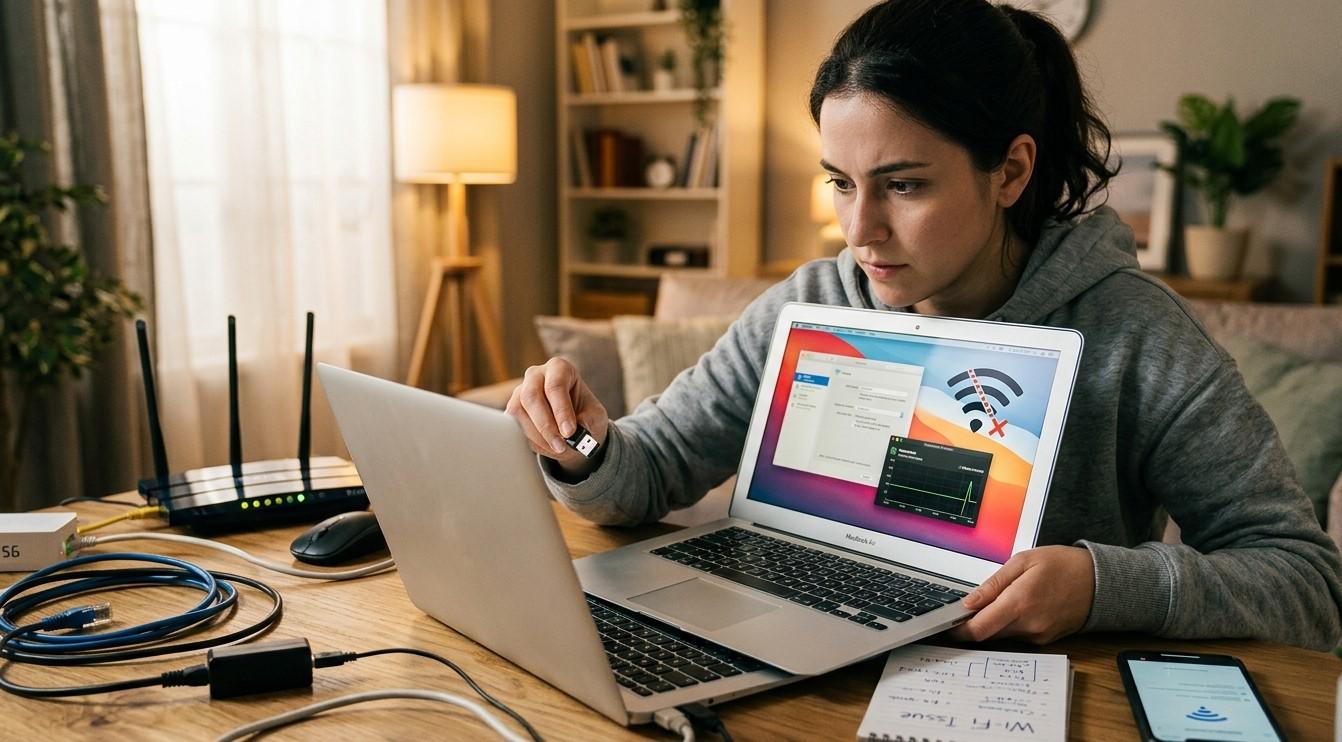
A reliable Wi-Fi connection is essential for working, studying, streaming, browsing, and communicating online. When your laptop repeatedly disconnects from Wi-Fi, even simple tasks can become frustrating. The problem may be caused by weak wireless signals, outdated drivers, incorrect network settings, router issues, or problems with the laptop's wireless hardware. If basic troubleshooting does not solve the issue, professional computer repair Albany services can help identify the underlying cause. For users experiencing persistent connectivity problems, experienced laptop repair Albany technicians can diagnose both software and hardware-related issues.
Understanding why your laptop keeps losing its Wi-Fi connection can help you determine whether the problem is with your laptop, wireless network, or router. Before replacing hardware or making complicated changes, try the following troubleshooting steps.
Check Whether the Problem Affects Other Devices
The first step is to determine whether your laptop is the only device experiencing Wi-Fi problems.
Connect another device, such as a smartphone or tablet, to the same wireless network. If other devices remain connected without problems, the issue is likely related to your laptop.
However, if multiple devices repeatedly lose their connection, the problem may involve your router, modem, internet service, or wireless network environment.
This simple test can save time because it helps you identify where to focus your troubleshooting efforts.
Restart Your Laptop and Router
Sometimes temporary software or network communication problems can cause repeated Wi-Fi disconnections.
Start by restarting your laptop. After it boots, reconnect to your wireless network and check whether the connection remains stable.
You can also restart your router by unplugging it from the power source, waiting briefly, and plugging it back in. Allow the router enough time to fully restart before reconnecting your laptop.
Restarting these devices can clear temporary connection errors and refresh network communication.
Move Closer to the Wireless Router
Distance can have a significant effect on Wi-Fi performance.
If your laptop is located far from the router, the wireless signal may become weak or unstable. Walls, floors, furniture, appliances, and other physical obstacles can also interfere with wireless communication.
Try moving closer to the router and testing the connection again. If the connection becomes stable when you are nearby, poor signal strength may be contributing to the problem.
For larger homes or offices, a Wi-Fi extender or mesh network may provide better coverage.
Forget and Reconnect to the Wi-Fi Network
Your laptop may occasionally experience problems with saved wireless network information.
Removing the network and reconnecting can refresh the connection.
On Windows, open the available Wi-Fi networks, locate your network, choose the option to forget it, and then reconnect by entering the wireless password again.
This process can resolve problems caused by corrupted or outdated saved network configurations.
Update Your Wi-Fi Driver
The wireless network adapter depends on a driver to communicate properly with the operating system.
If the driver is outdated, corrupted, or incompatible with a recent operating system update, you may experience:
- Frequent disconnections
- Slow wireless speeds
- Failure to detect networks
- Intermittent connectivity
- Difficulty reconnecting after sleep mode
Check your laptop manufacturer's support resources or the operating system's device management tools for available driver updates.
Installing the correct driver can significantly improve wireless stability.
Check Power Management Settings
Some laptops use power-saving features to reduce battery consumption. In certain situations, these settings may cause the wireless adapter to enter a low-power state.
If your laptop disconnects primarily when running on battery power or after waking from sleep, check the power management settings associated with the Wi-Fi adapter.
Adjusting wireless power-saving options may prevent the adapter from being unnecessarily disabled.
Disable and Re-Enable the Wireless Adapter
Another simple troubleshooting step is to temporarily disable the laptop's Wi-Fi adapter and then enable it again.
This forces the operating system to reinitialize the wireless hardware and establish a fresh connection.
If this temporarily fixes the problem but the disconnections return frequently, there may be a deeper driver, software, or hardware issue that requires further investigation.
Check for Operating System Problems
Operating system updates can sometimes introduce compatibility problems with existing drivers or network configurations.
If your Wi-Fi problems started immediately after a major system update, check whether additional updates or driver patches are available.
You should also make sure your operating system is properly updated. Running outdated system components can create compatibility and security issues.
If network problems continue despite updating the system, professional computer repair Albany NY technicians can examine the laptop's software configuration and determine whether a system-level problem is responsible.
Look for Interference From Other Devices
Wireless interference can make an otherwise reliable connection unstable.
Other electronic devices and nearby wireless networks may interfere with your laptop's connection, particularly in crowded environments such as apartment buildings, offices, dormitories, or shared workspaces.
Try testing your laptop in a different location. If the connection becomes stable elsewhere, interference or signal congestion may be contributing to the issue.
Changing wireless settings on the router may also improve reliability.
Check the Laptop's Wi-Fi Hardware
If software troubleshooting does not resolve the problem, the wireless adapter itself may be failing.
Possible hardware-related symptoms include:
- Wi-Fi networks disappearing randomly
- The laptop failing to detect wireless networks
- Connections dropping when the laptop is moved
- Wireless functionality working intermittently
- Bluetooth and Wi-Fi experiencing related problems
A damaged internal wireless card, loose connection, or motherboard-related problem may require professional inspection.
Avoid opening the laptop unless you have the appropriate technical knowledge and tools. Incorrect handling of internal components can cause additional damage.
When to Contact a Professional Repair Service
If your laptop continues disconnecting after restarting the router, updating drivers, checking network settings, and improving signal strength, professional assistance may be worthwhile.
A qualified technician can perform a more detailed diagnosis of the laptop's wireless hardware and software. They can check the network adapter, drivers, operating system configuration, internal connections, and other components that may affect connectivity.
Professional laptop repair Albany services can also help determine whether repairing the existing wireless hardware or replacing a faulty component is the better solution.
For businesses and individuals who depend on reliable internet access, addressing recurring Wi-Fi problems quickly can prevent unnecessary downtime.
How to Prevent Future Wi-Fi Problems
Once your laptop's connection is stable, a few maintenance practices can help reduce future problems.
Keep your operating system and network drivers updated. Avoid downloading questionable software that may interfere with network settings. Keep your router firmware updated when appropriate, and position the router in a central location with minimal physical obstruction.
Regularly maintaining your laptop can also help prevent broader performance problems that may affect network functionality.
Conclusion
A laptop that repeatedly loses its Wi-Fi connection can result from something as simple as a weak wireless signal or as complicated as a failing network adapter. By checking other devices, restarting your equipment, improving signal strength, reconnecting to the network, updating drivers, reviewing power settings, and checking for interference, you can often identify the source of the problem.
When these troubleshooting steps do not provide a lasting solution, experienced computer repair Albany, professional laptop repair Albany, and dependable computer repair Albany NY specialists can provide a thorough diagnosis. Professional assistance can help identify hidden software or hardware problems and restore a stable wireless connection, allowing you to use your laptop with fewer interruptions.

 English
 Arabic
 Spanish
 Portuguese
 Deutsch
 Turkish
 Dutch
Dutch
 Italiano
 Russian
 Romaian
 Portuguese (Brazil)
 Greek
Greek