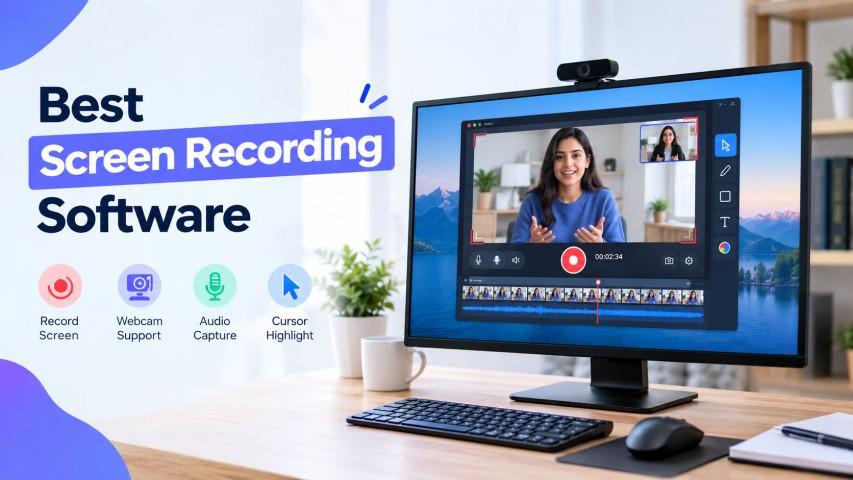
Screen recording software makes it easy to capture your computer screen for tutorials, presentations, online classes, product demonstrations, gaming, and business communication. A good screen recorder should provide clear video, reliable audio, useful recording controls, and easy export options.
There are many screen recording programs available today, from free open-source tools to professional applications. Some are designed for advanced users, while others are simple enough for beginners. This guide explains different options and helps you understand what to look for when choosing a screen recorder.
What Is Screen Recording Software?
Screen recording software is a program that captures activity on your computer screen and saves it as a video. Depending on the tool, you may also be able to record your microphone, system audio, webcam, or a specific application window.
You can use a screen recorder for:
- Creating tutorials
- Recording presentations
- Making product demonstrations
- Recording online meetings
- Creating training videos
- Recording gameplay
- Explaining technical problems
- Creating educational content
What Is a Screen Recorder?
A screen recorder is software or a built-in computer feature that records what appears on your screen.
Some tools provide basic recording, while others offer advanced features such as multiple scenes, webcam overlays, audio controls, editing, cloud sharing, and live streaming.
For example, OBS Studio supports multiple sources such as your display, application windows, webcam, and game capture.
Best Screen Recording Programs
Different users need different features. Some popular options include:
1. OBS Studio
OBS Studio is a free and open-source screen recorder available for Windows, macOS, and Linux. It supports screen capture, webcam recording, audio mixing, scenes, and live streaming.
It is particularly useful for users who want detailed control over their recordings.
2. ScreenRec
ScreenRec focuses on quick recording and sharing. It can record your screen, webcam, microphone, and system audio and can provide a shareable link for recordings.
3. ShareX
ShareX is a free, open-source Windows tool that supports screenshots and screen recording. It is lightweight and provides several capture options.
4. Windows Built-In Tools
Windows includes built-in recording options such as the Snipping Tool and Xbox Game Bar. These can be useful if you want to record your screen without installing additional software.
5. Loom
Loom is designed for recording and sharing videos quickly. It can be useful for business communication, tutorials, feedback, and team updates.
Screen Capture and Recording Software
Screen capture and recording software can do more than simply record a screen. Depending on the application, you may be able to:
- Capture a specific window
- Record the entire display
- Select part of the screen
- Record a webcam
- Capture microphone audio
- Capture system audio
- Add annotations
- Edit the recording
- Share the recording online
If you regularly create tutorials or demonstrations, these additional features can make your workflow easier.
How to Choose a Screen Recorder
When choosing a screen recorder, consider the following features:
Video Quality
Check whether the software supports the resolution you need, such as 1080p or higher.
Audio Recording
If you are creating tutorials or presentations, make sure the tool can record your microphone and system audio.
Recording Length
Some free plans have recording limits. Others allow longer or unlimited recordings. For example, the current JarvisReach comparison notes that some tools have limits while OBS Studio does not impose a recording time limit.
Watermarks
If you plan to publish your videos, check whether the free version adds a logo or watermark.
Editing Features
Some screen recording programs include basic editing, while others require you to use separate video editing software.
Operating System
Make sure the software supports your computer. Some tools are available on Windows, Mac, and Linux, while others are designed for only one platform.
Screen Recorder Without Watermark
A screen recorder without watermark is useful when you want your final video to look clean and professional.
Several tools currently listed by JarvisReach provide watermark-free recordings, including OBS Studio, ScreenRec, ShareX, Loom, and built-in Windows recording options. However, free-plan limits can differ between tools.
Always check the current terms before choosing a free recording tool.
OBS Screen Recorder
The OBS screen recorder is one of the most flexible free options. OBS Studio is open source and allows users to configure scenes, sources, video settings, audio sources, and recording formats.
It can be used for:
- YouTube videos
- Gaming
- Tutorials
- Online courses
- Presentations
- Live streaming
- Software demonstrations
The interface can take some time to learn, especially for beginners.
Windows Screen Recording Tool
If you use Windows, you may not need to download another application.
Windows provides built-in options for screen recording. The Snipping Tool can record a selected area, while Xbox Game Bar can record supported application windows.
This makes the built-in Windows screen recording tool convenient for quick recordings.
Screen Capture for Windows
There are several options for screen capture for Windows.
You can use:
- Snipping Tool
- Xbox Game Bar
- OBS Studio
- ShareX
- ScreenRec
- Loom
The right option depends on whether you need simple recording, advanced controls, editing, sharing, or gaming features.
How to Record Your Screen on Windows
If you want a quick recording, you can use Windows' built-in tools.
For example, the Snipping Tool provides a recording option, while Xbox Game Bar can be opened with Windows + G.
Before recording, check your microphone and audio settings if you need narration.
Screen Recording for Tutorials
Screen recording software is particularly useful for tutorials.
You can record yourself:
- Opening a website or application.
- Explaining each step.
- Demonstrating a feature.
- Recording your voice.
- Showing the final result.
A screen recorder with webcam and microphone support can also help make tutorials more personal.
Screen Recording for Business
Businesses use screen recording programs for many purposes, including:
- Employee training
- Customer support
- Product demonstrations
- Sales presentations
- Internal communication
- Software tutorials
- Client updates
Tools such as Loom are designed around quickly recording and sharing videos with other people.
Frequently Asked Questions
What is the best screen recording software?
The right software depends on your needs. OBS Studio provides advanced controls, while tools such as ScreenRec and Windows' built-in options are useful for simpler recordings.
Is there a screen recorder without watermark?
Yes. Several screen recorders offer watermark-free recording. However, features and free-plan limits vary between applications.
Is OBS a free screen recorder?
Yes. OBS Studio is free and open source and does not add an OBS watermark to recordings.
Can I record my screen without downloading software?
Yes. Windows provides built-in screen recording options, and macOS also includes built-in screen recording functionality.
Can a screen recorder capture audio?
Yes. Many screen recording programs can capture microphone audio, system audio, or both, depending on the software and settings.
What is the best screen recorder for Windows?
Windows users can choose from built-in tools, OBS Studio, ShareX, ScreenRec, Loom, and other recording applications. Your choice should depend on the features and recording workflow you need.
Conclusion
Choosing the right screen recording software depends on what you want to record and how you plan to use the video. Beginners may prefer a simple built-in screen recorder, while advanced users may want software such as OBS Studio with more control.
Whether you need screen recording programs, screen capture and recording software, a screen recorder without watermark, an OBS screen recorder, a Windows screen recording tool, or screen capture for Windows, compare recording quality, audio support, time limits, watermarks, editing features, and platform compatibility before making your choice.



 English
 Arabic
 French
 Spanish
 Deutsch
 Turkish
 Dutch
Dutch
 Italiano
 Russian
 Romaian
 Portuguese (Brazil)
 Greek
Greek